¿Cómo se realiza la comunicación de series?
En el menú Configuración → Series, podrás visualizar las series disponibles:
Opción 1:
La comunicación automática de las series puede hacerse directamente haciendo clic en el botón "GENERAR CÓDIGO DE VALIDACIÓN", cuando tengas un documento abierto que aún no tenga código de validación de serie.
Encima del documento, recibirás una notificación indicando la falta del código de validación siempre que no se haya comunicado la serie correspondiente al tipo de documento creado, para que no olvides este paso.
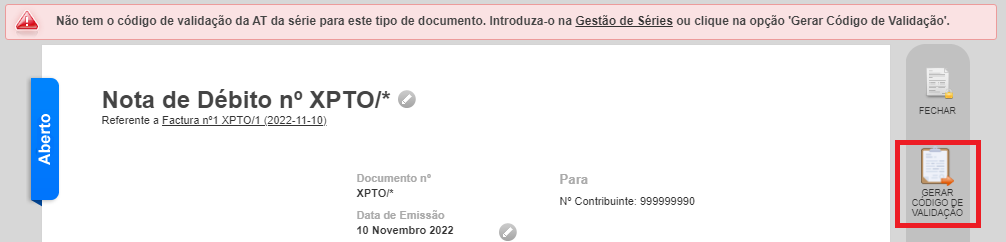
Si el código se emite correctamente, el documento quedará abierto sin la notificación visible.
En caso contrario, serás redirigido a la gestión de series o a la configuración de la conexión con la Autoridad Tributaria, según el error producido.
Opción 2:
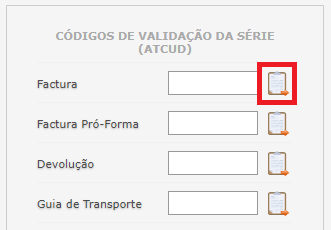
La comunicación automática de series también puede realizarse haciendo clic en el icono para acceder a la información de la serie (como en la comunicación manual).
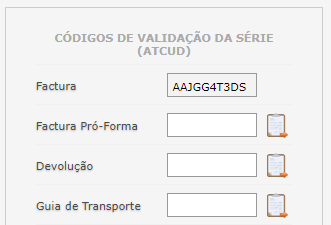
Después, haz clic en el icono correspondiente al tipo de documento deseado y confirma tu intención haciendo clic en el botón "Ok". El código se generará y quedará bloqueado para edición automáticamente.
Para introducir las credenciales de acceso al Portal de Finanzas y permitir que el Webservice realice la comunicación automática de las series, ve a la pestaña "Configuración" de tu cuenta weoInvoice.
En el área de Comunicación Automática por Webservice, selecciona la opción "Series" e introduce el usuario y la contraseña creados específicamente para este fin en el Portal de Finanzas:
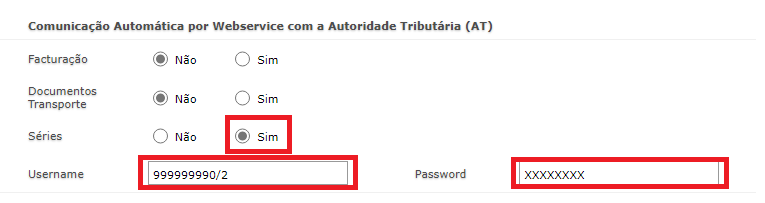
Para crear un usuario en el Portal de Finanzas y otorgarle los permisos necesarios para el uso del Webservice, inicia sesión en el portal y accede a este enlace, luego:
1. Haz clic en el botón "CREAR UN NUEVO USUARIO"
2. Rellena los campos como se muestra en la imagen, prestando atención al Nombre de Usuario, Contraseña y selección de la autorización para la operación WSE – Comunicación y Gestión de Series por webservice.
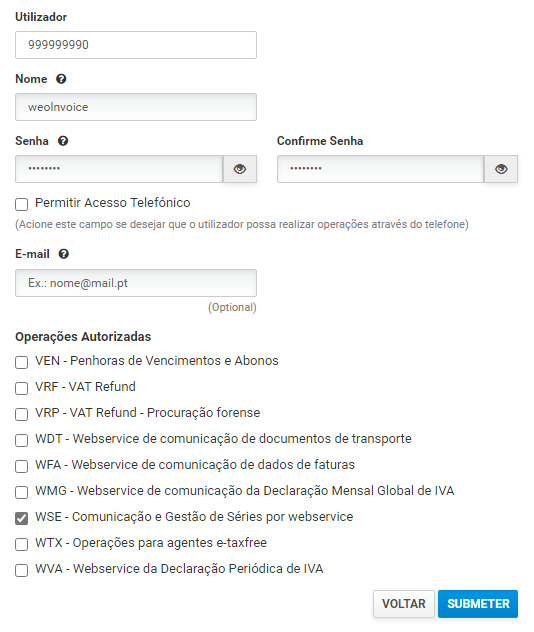
3. Haz clic en el botón "ENVIAR"
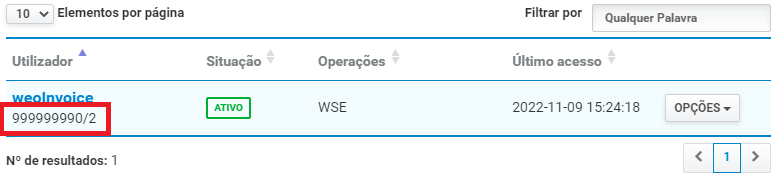
4. Ten en cuenta que el nombre de usuario que debes introducir en la configuración de weoInvoice es el que aparece en el área señalada de la imagen, e incluye tu NIPC (número de identificación fiscal):